Beam Now Supports Gemini CLI, Auto-Install Any AI Agent in One Click
Beam v3.1.0 is here, and with it comes first-class support for Google's Gemini CLI alongside Claude Code and Codex. Even better: if an agent isn't installed on your machine, Beam will install it for you automatically.
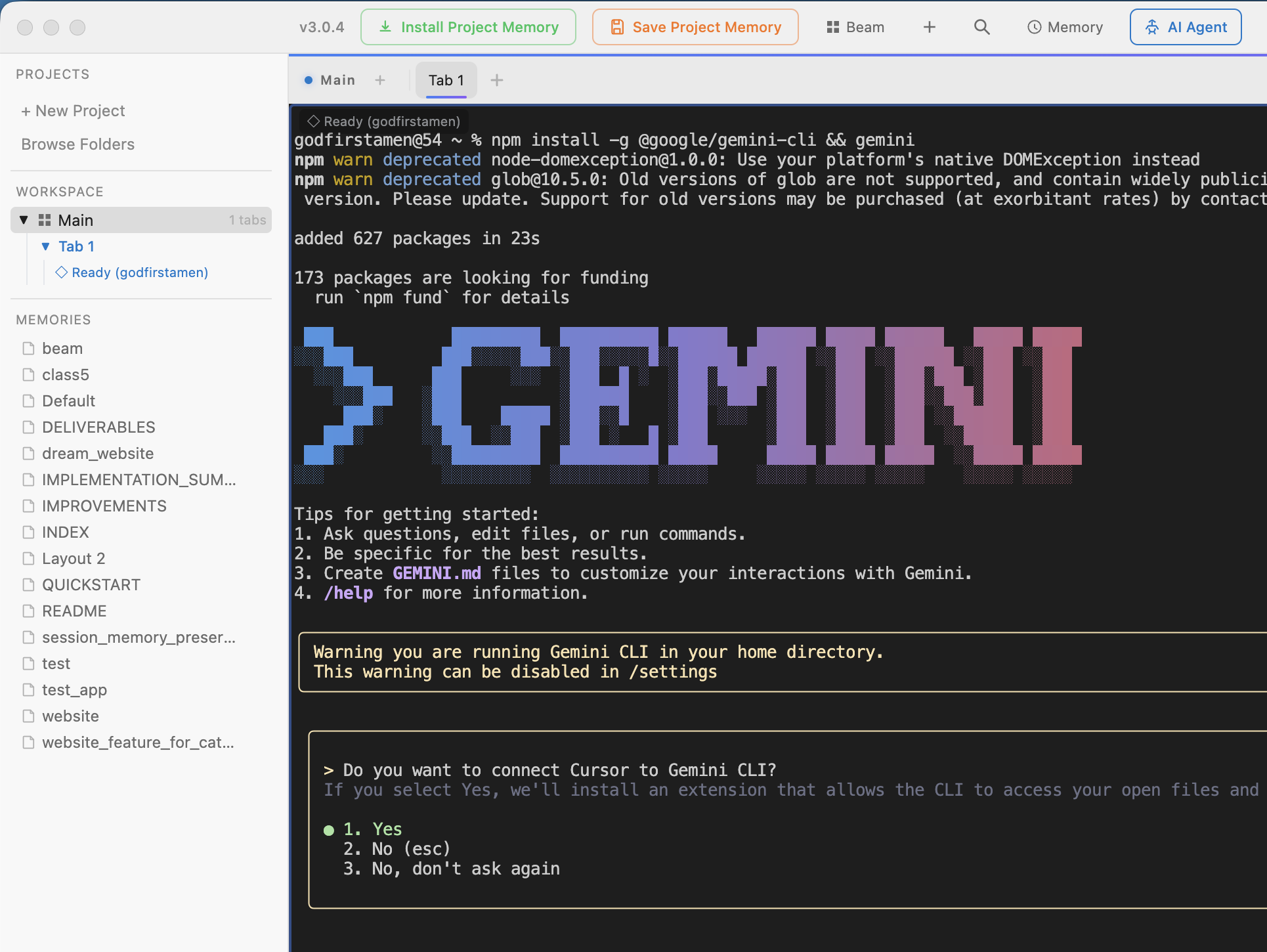
Beam auto-installs Gemini CLI and launches it in your project directory
Three Agents, One App
The AI coding agent landscape is expanding fast. Instead of picking one and committing, Beam lets you run all of them from the same interface:
Each agent has its own strengths. Claude Code excels at complex multi-file refactors. Gemini brings Google's latest models to the terminal. Codex offers OpenAI's approach to agentic coding. With Beam, switching between them is trivial, just pick the one you want when creating a project.
One-Click Auto-Install
This is the headline feature of v3.1.0. When you select an AI agent that isn't installed on your machine, Beam doesn't just show an error, it installs it for you and launches it, all in one step.
Click Gemini CLI in the AI Agent dropdown. If it's not installed, Beam runs:
What happens behind the scenes
npm install -g @google/gemini-cli && gemini
Beam chains the install and launch commands so you go from zero to running in a single click. This works for every supported agent, Claude Code, Gemini, Codex, and any custom agent you configure.
No more copying npm commands from docs. No more wondering if you have the right package name. Just click and go.
Fixed: Agent Detection for Homebrew
A bug in previous versions caused agents installed via Homebrew (or nvm, pyenv, etc.) to show "Not found" in the AI Agent dropdown, even though they worked fine when launched manually.
The root cause: Electron's main process doesn't inherit your shell's full PATH. Agents installed at /opt/homebrew/bin/ were invisible to the app.
In v3.1.0, Beam now uses your login shell for agent detection, so it picks up every binary your terminal can find. If you can run gemini in your terminal, Beam will detect it.
How to Use It
There are two ways to launch Gemini (or any agent) in Beam:
From the toolbar:
- Click the AI Agent button in the toolbar
- Select Gemini CLI from the dropdown
- It launches in your active terminal (auto-installs if needed)
When creating a new project:
- Click + New Project in the sidebar (or press ⌘L)
- Set your project name and working directory
- Under "Start With", select Gemini CLI
- Click Create Project: Beam creates the project and launches Gemini in one step
Custom Agents Too
Don't see your preferred agent? Select Custom in the New Project setup and enter any command. Beam will run it in the terminal when the project is created. Works with aider, mentat, or any CLI tool.
What's Next
We're watching the AI agent space closely. As new agents emerge, we'll add first-class support. The auto-install pattern means you can try any new agent the day it launches without leaving Beam.
If there's an agent you'd like to see supported, let us know.
Try Gemini CLI in Beam
Download Beam v3.1.0 and run any AI coding agent with one click.
Download Beam Free