AI Agent Memory Management: How to Give Claude Code Persistent Context
Every time you start a new Claude Code session, it has no idea what your project is about. It doesn't know your architecture, your conventions, your build system, or the decisions you made yesterday. You end up repeating yourself, re-explaining your codebase, and losing time on context that should already be there.
This is the memory problem, and it's the biggest friction point in AI-assisted development today. Beam v2.5.0 solves it.
The Problem: AI Amnesia
If you use Claude Code, OpenAI Codex, or any terminal-based AI agent, you've felt this pain:
- Session 1: You spend 10 minutes explaining your project structure, tech stack, and naming conventions. Claude builds exactly what you want.
- Session 2: Claude has no memory of Session 1. You start over. "We're using Swift with SwiftUI, the main files are..."
- Session 3: Same thing. Again.
The agents themselves support reading files for context, but there's no automated system to create, maintain, and inject that context. Until now.
The Solution: Beam Memory Management
Beam v2.5.0 introduces AI Agent Memory Management: a system that gives every AI agent session persistent project context with zero manual effort.
Here's how it works:
Step 1: Start an agent from Beam
Click Install Project Memory in the toolbar. Beam sends a prompt to your active agent telling it to read the project memory file.
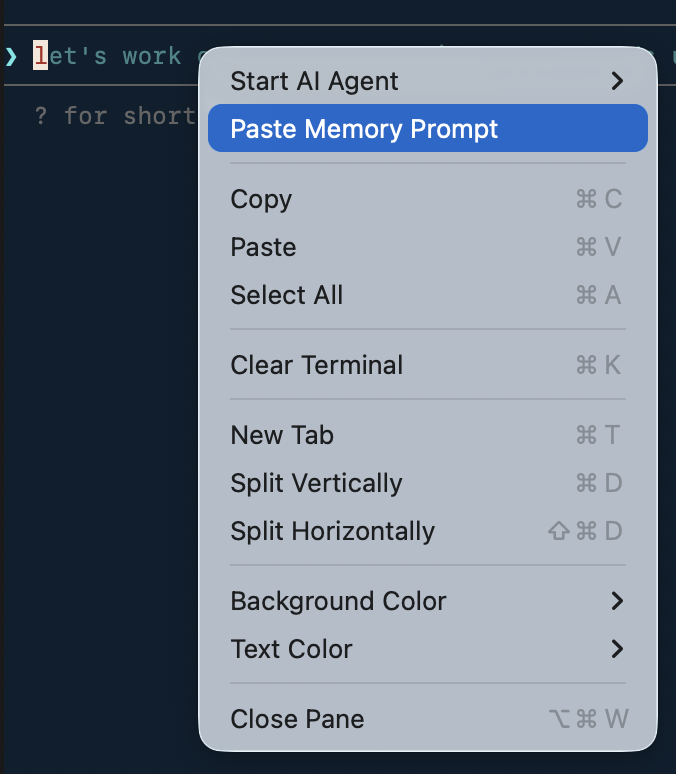
Step 2: The agent receives the prompt
Beam sends the memory prompt directly to the active agent session. The prompt tells the agent:
Before starting, read and reference the memory bank at
~/ProjectName.md for project context, conventions, and
decisions. Update this file as you make significant changes
or learn new information about the project.
That's it. The agent now reads your project memory file and has full context.
Step 3: The agent learns and remembers
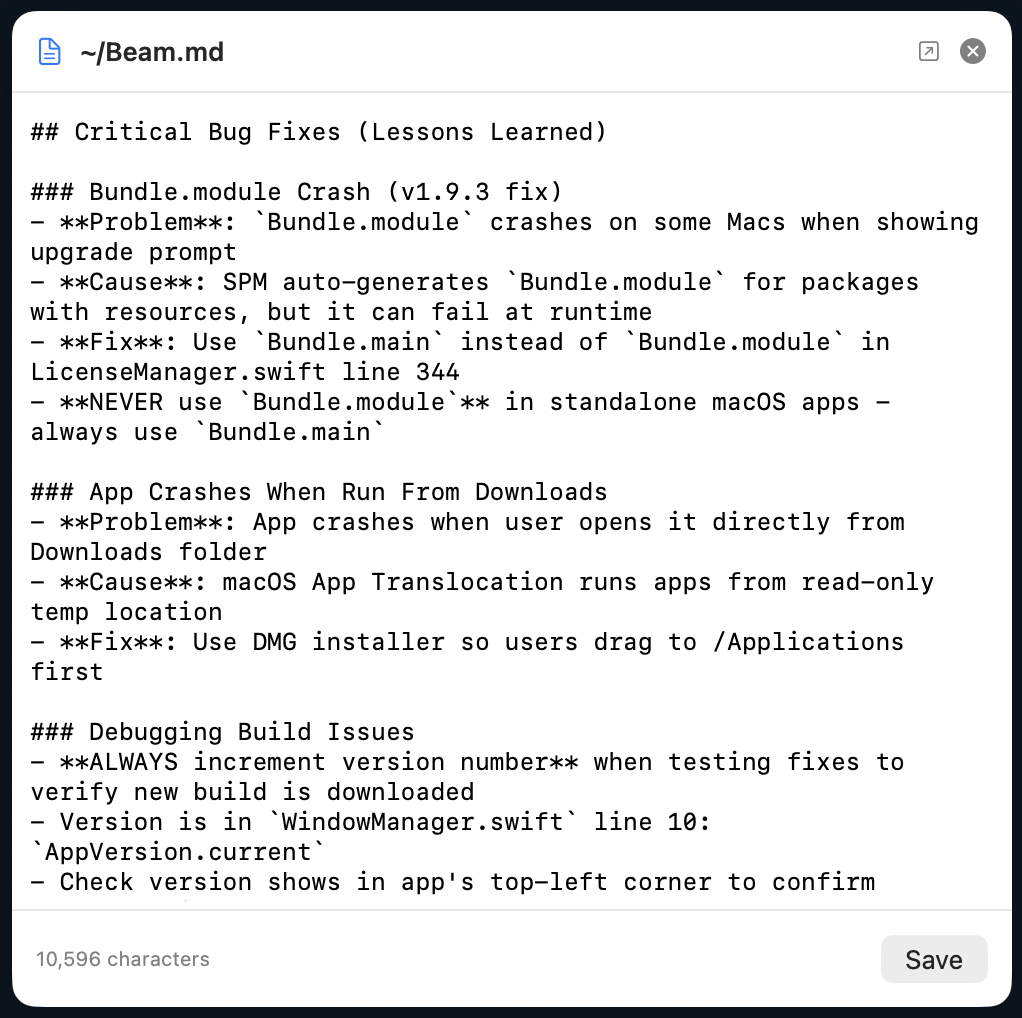
As the agent works, it updates the memory file with new information, architecture decisions, file paths, conventions, bug fixes, and lessons learned. The next session starts with all of that context baked in.
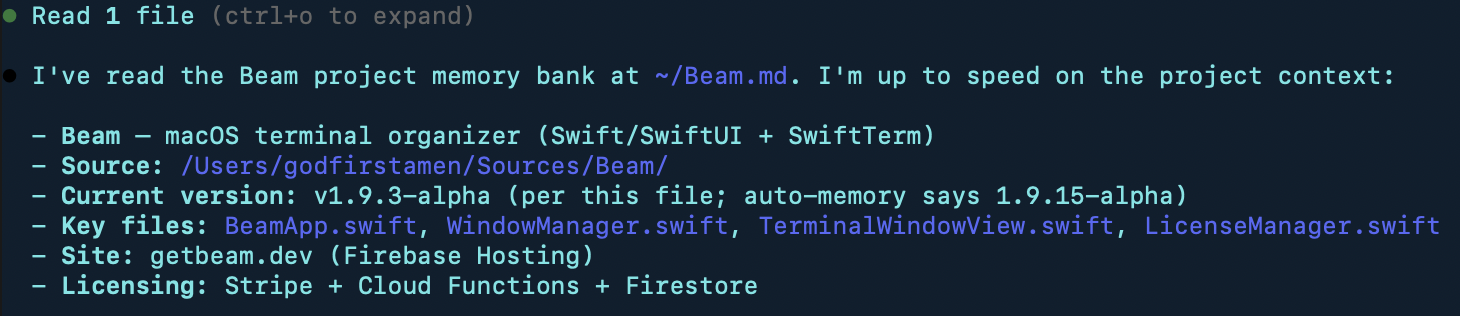
~/ProjectName.md on your filesystem. It's a plain Markdown file that both you and the AI agent can read and edit. No proprietary format, no lock-in.
The Memory Manager
Beam includes a Memory Manager (accessible from the toolbar) that lets you view and manage memory files across all your projects.
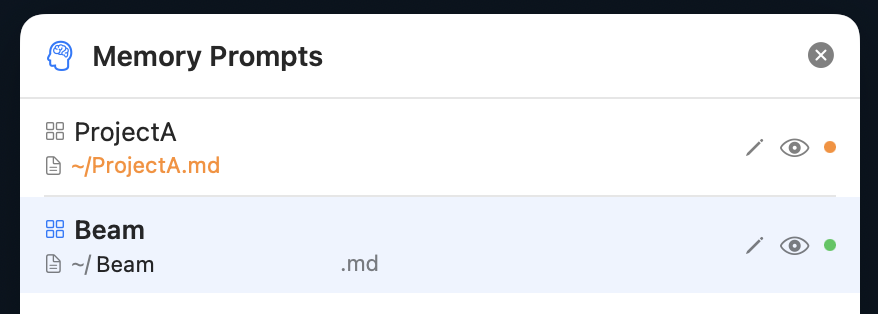
From the Memory Manager, you can:
- See all projects and their associated memory files
- Edit file names: customize which memory file each project uses
- View and edit content: open the raw memory file and make changes directly
- Check status: green dot means the file exists, orange means it will be created on first use
Why This Matters
Memory management isn't just a convenience feature. It fundamentally changes the AI-assisted development experience:
Without memory
- Every session starts cold, no context
- You repeat yourself constantly
- The agent makes mistakes because it doesn't know your conventions
- Context window is wasted on re-explaining basics
With Beam memory
- Every session starts warm, full project context loaded
- The agent knows your architecture, conventions, and past decisions
- Context window is used for actual work, not re-orientation
- Knowledge accumulates over time, each session is smarter than the last
How to Get Started
1Download Beam v2.5.0 from getbeam.dev
2Create a project: save your workspace layout with ⌘S and give it a name (e.g., "MyApp")
3Start an AI agent: use the toolbar to start an agent in your project
4Install memory: click Install Project Memory in the toolbar
5Work normally: the agent reads your memory file and updates it as it works
That's it. Every future session with that project will have full context from day one.
The Bigger Picture
We believe the terminal is becoming the primary interface for AI-assisted development. Claude Code, Codex, and OpenClaw all run in the terminal. But terminal workflows are still primitive, no project organization, no persistent context, no visual management.
Beam is building the workspace layer that these agents need. One-click installs. Project-based organization. And now, persistent memory across sessions.
Your AI agents should get smarter over time, not start from scratch every session.
Give Your AI Agents Memory
Download Beam v2.5.0 and start building with persistent context. Free to try, $10/month for Pro.
Download Beam Free